How to use Merge G-CODE files
Merges two or more G-code files into one program. If one part is smaller than the other, the app places it so the two do not overlap.
Open the appSettings
Cutting type, coordinates, units and M codes work the same way in every cutting app. G-code settings explained
Basic input data
| Setting | What you enter | Default |
|---|---|---|
| Upload the first file required | EIA, NC, CNC, GCODE file, up to 50 MB | – |
| Upload the second file required | EIA, NC, CNC, GCODE file, up to 50 MB | – |
G-CODE data
| Setting | What you enter | Default |
|---|---|---|
| Cutting type required | One of: GAS · PLASMA · MARK | – |
| Coordinates required | One of: Absolute · Incremental · Absolute - Incremental Arc centers | Absolute |
| Measurement unit required | One of: inch · mm · cm | mm |
| M codes on required | One of: Yes · No | Yes |
What you get
- Download Generated G-CODE file (.GCODE)
- Download Generated G-CODE file (.TXT)
- Download Generated G-CODE file (.NC)
- Download Generated DXF
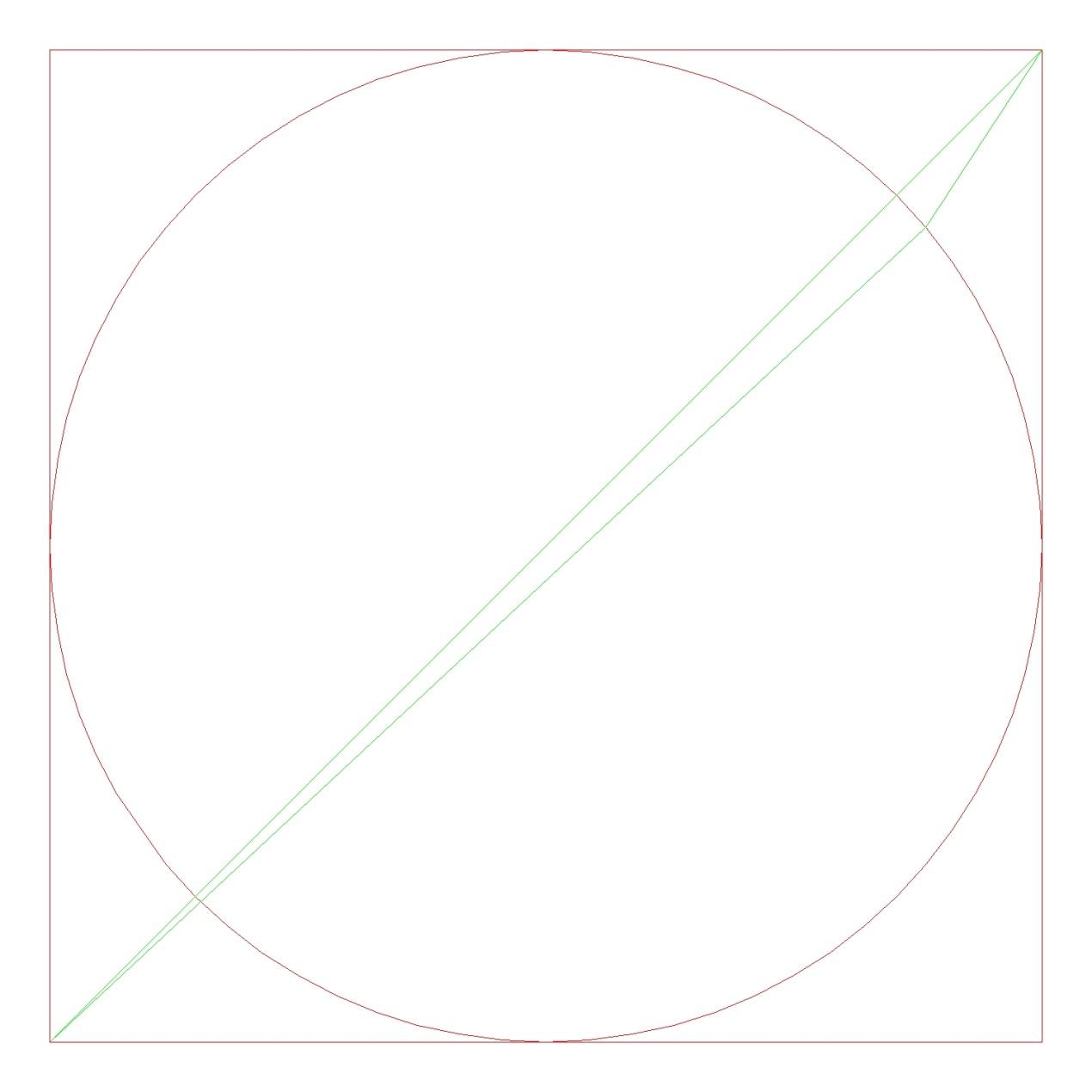
- A preview image of the result
Worked example
First file
G21
G90
G00 X132.4399 Y123.1882
G02 X17.5333 Y26.77008 I74.98664 J74.97913
G02 X132.4399 Y123.1882 I74.98664 J74.97913
G00 X0 Y0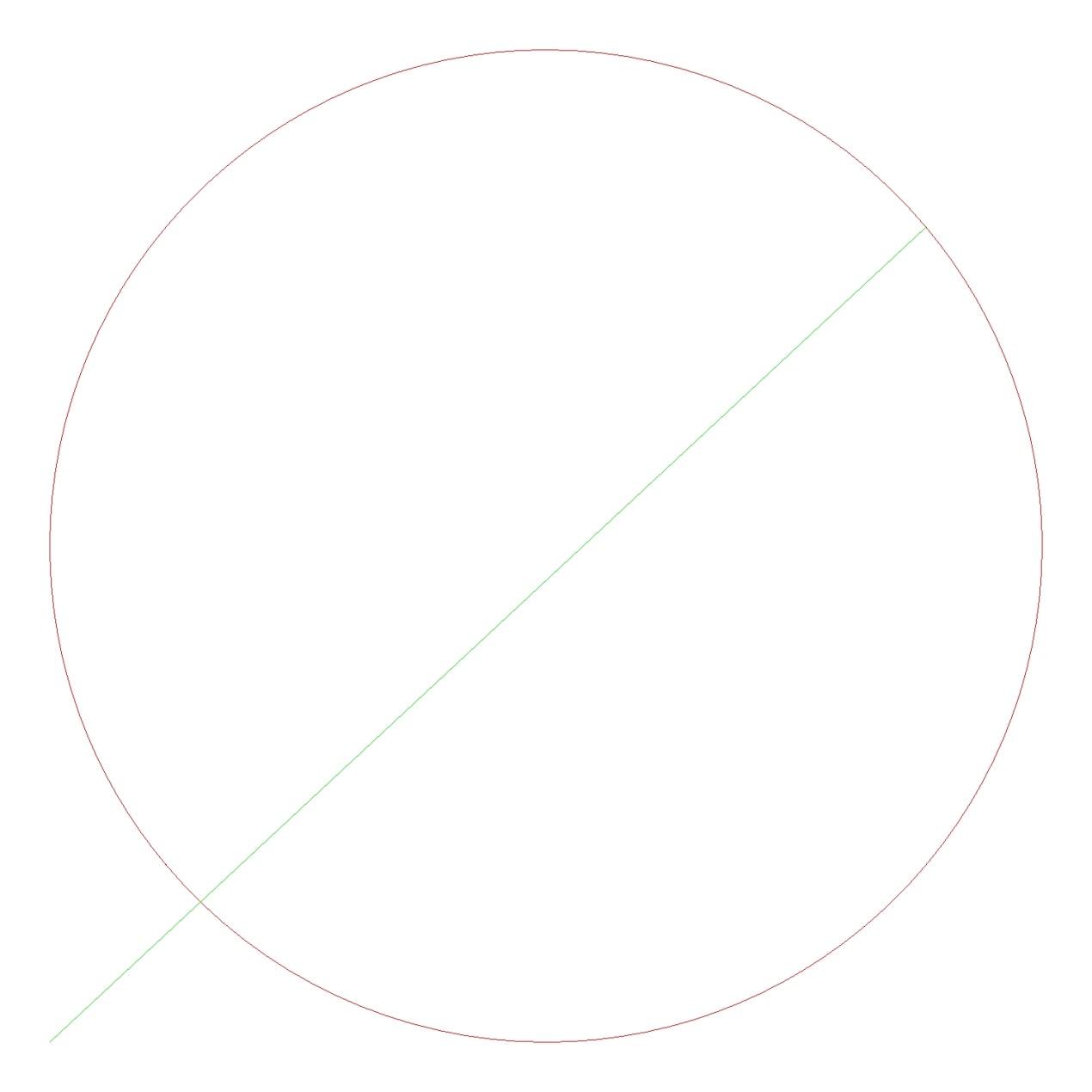
Second file
G21
G90
G00 X150 Y150
G01 X150 Y0
G01 X0 Y0
G01 X0 Y150
G01 X150 Y150
G00 X0 Y0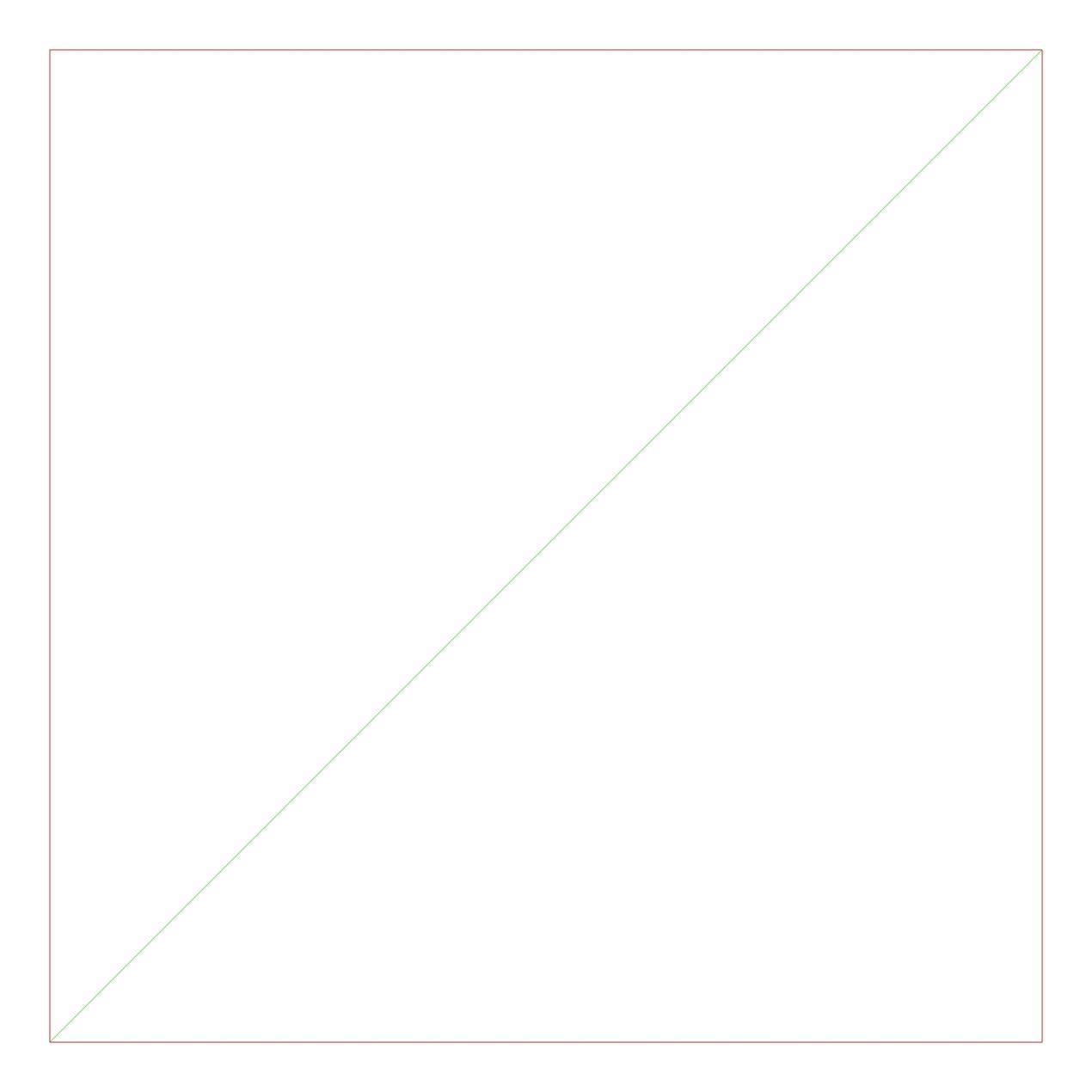
Merged result
G21
G90
G00 X132.4532 Y123.2091
G02 X17.5466 Y26.79094 I74.99994 J74.99999
G02 X132.4532 Y123.2091 I74.99994 J74.99999
G00 X150.0133 Y150.0209
G01 X150.0133 Y0.02086
G01 X0.0133 Y0.02086
G01 X0.0133 Y150.0209
G01 X150.0133 Y150.0209
G00 X0 Y0