How to use DXF to G-CODE (common cuts)
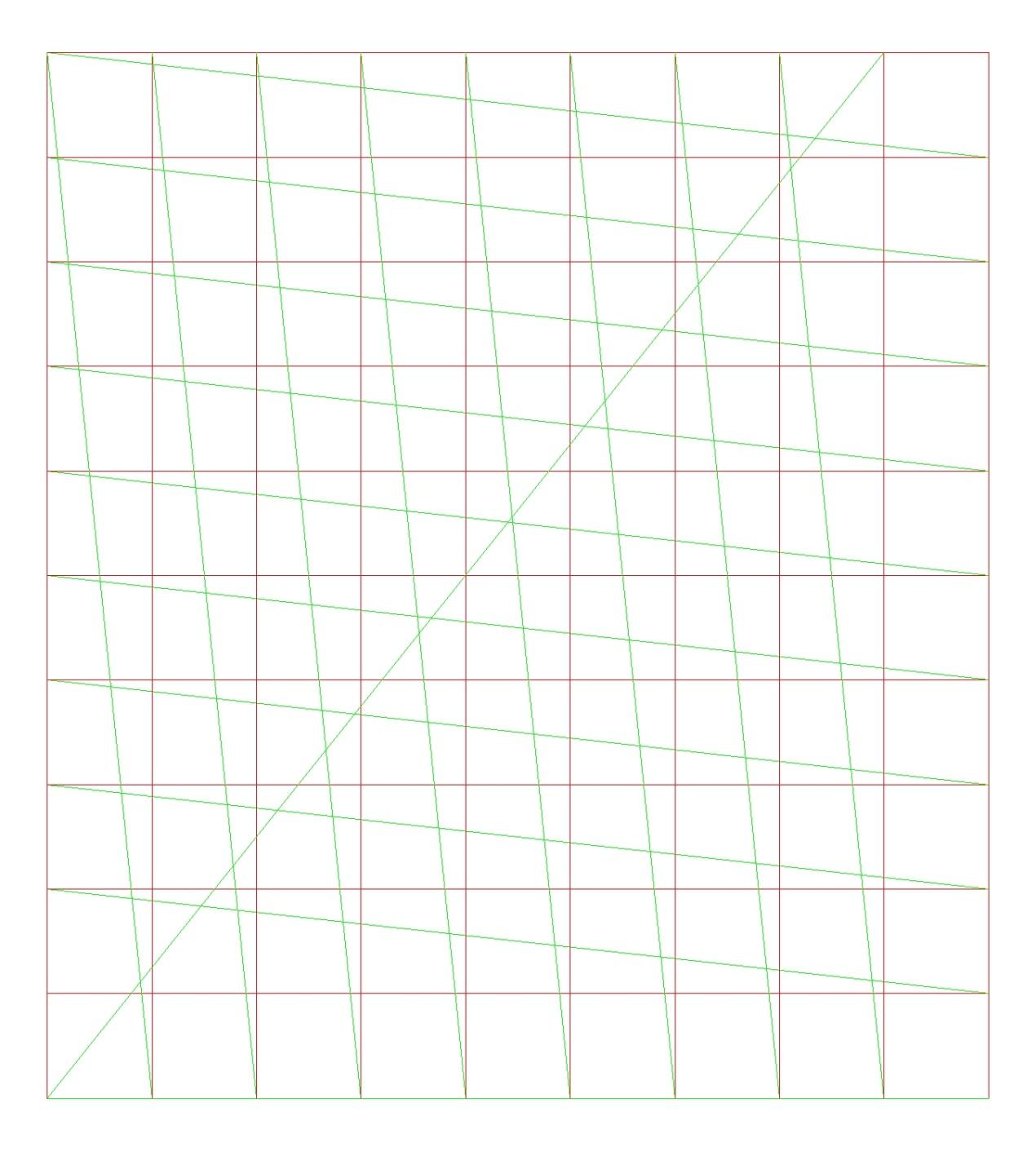
Creates G-code where neighbouring parts share an edge, so a shared line is cut once instead of twice. This saves cutting time and material.
Open the appSettings
Cutting type, coordinates, units and M codes work the same way in every cutting app. G-code settings explained
Basic input data
| Setting | What you enter | Default |
|---|---|---|
| Upload your DXF file required | DXF file, up to 50 MB | – |
G-CODE data
| Setting | What you enter | Default |
|---|---|---|
| Cutting type required | One of: GAS · PLASMA · MARK | – |
| DXF arc as polyline required | One of: Yes · No | Yes |
| Outline on required | One of: Yes · No | Yes |
| Coordinates required | One of: Absolute · Incremental · Absolute - Incremental Arc centers | Absolute |
| Measurement unit required | One of: inch · mm · cm | mm |
| M codes on required | One of: Yes · No | Yes |
What you get
- Download Generated G-CODE file (.GCODE)
- Download Generated G-CODE file (.TXT)
- Download Generated G-CODE file (.NC)
- A preview image of the result
Worked example
Settings
- Outline on
Yes