How to use DXF Nesting & G-Code Generation
Nests the parts of one or more DXF files on a sheet and writes the cutting G-code for the whole sheet in one step. Use Items to set how many copies of each file you need. If the parts do not fit, make the sheet larger.
Open the appSettings
Cutting type, coordinates, units and M codes work the same way in every cutting app. G-code settings explained
DXF file
This section repeats up to 100 times, once for each file you add.
| Setting | What you enter | Default |
|---|---|---|
| Upload your drawing file required | DXF file, up to 15 MB | – |
| Items | Whole number | 1 |
Nesting data
| Setting | What you enter | Default |
|---|---|---|
| Enter the width of the sheet material used for nesting. required | Number | – |
| Enter the height of the sheet material used for nesting. required | Number | – |
| Define the minimum allowed distance between parts during nesting. | Number | 0 |
| Enable nesting of concave polygons. Disable this option for faster performance if all parts are convex. | Tick box | Off |
G-CODE data
| Setting | What you enter | Default |
|---|---|---|
| Cutting type required | One of: GAS · PLASMA · MARK | – |
| DXF arc as polyline required | One of: Yes · No | Yes |
| Kerf distance | Number | 0 |
| Lead in distance | Number | 0 |
| Lead out distance | Number | 0 |
| Coordinates required | One of: Absolute · Incremental · Absolute - Incremental Arc centers | Absolute |
| Measurement unit required | One of: inch · mm · cm | mm |
| M codes on required | One of: Yes · No | Yes |
| Optimize toolpath to minimize travel distance and machining time. | Tick box | On |
What you get
- Download Generated dxf
- Download Generated gcode
- Download Generated txt
- Download Generated NC
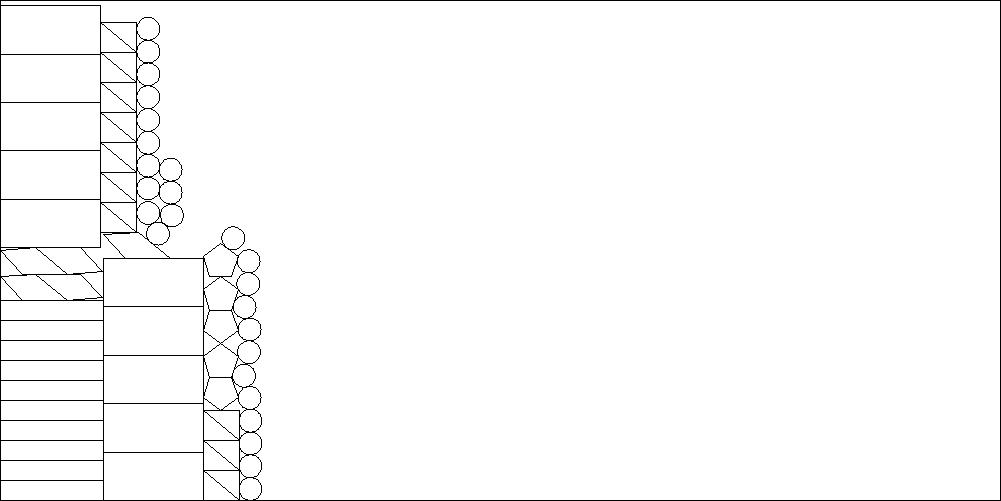
- A preview image of the result
Worked example
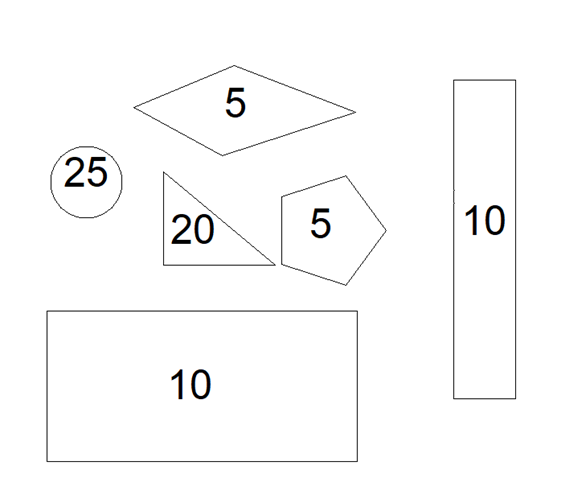
Drawing
Settings
- Enter the width of the sheet material used for nesting.
1000- Enter the height of the sheet material used for nesting.
1000- Define the minimum allowed distance between parts during nesting.
0
Result