How to use Kerf on DXF
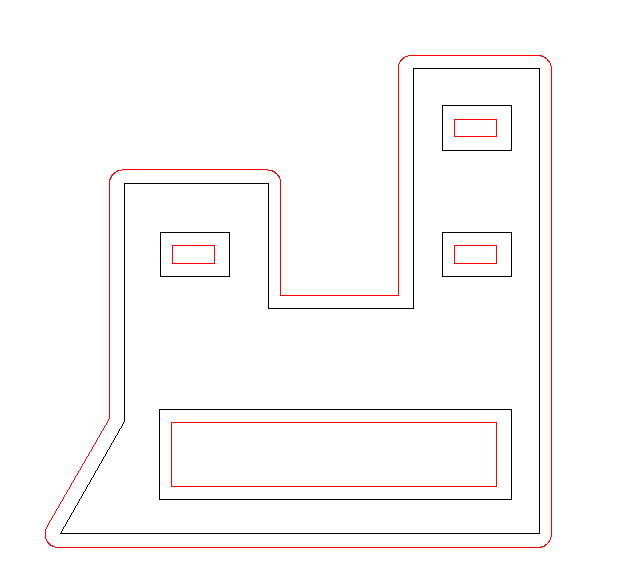
Offsets the outlines of a drawing by the kerf, so the finished part comes out at its drawn size. The app finds which outlines are holes: holes are offset inwards and outer contours outwards.
Open the appSettings
Basic input data
| Setting | What you enter | Default |
|---|---|---|
| Upload your DXF file required | DXF file, up to 50 MB | – |
| Thickness required | Number | 0 |
| Reverse kerf direction required | One of: Yes · No | No |
| DXF arc as polyline required | One of: Yes · No | Yes |
What you get
- Download Generated DXF
- A preview image of the result
Worked example
Original drawing
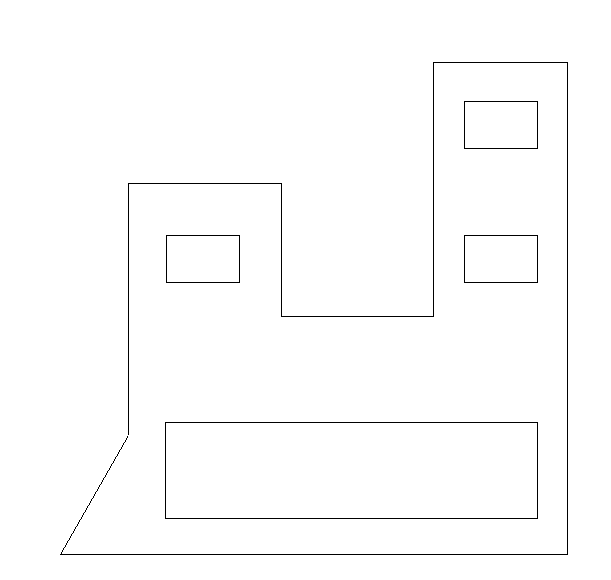
Settings
- Thickness
2The radius of the tool.- Reverse kerf direction
NoSet to Yes to offset in the opposite direction.- DXF arc as polyline
Yes
Result