How to use Image engraving (router)
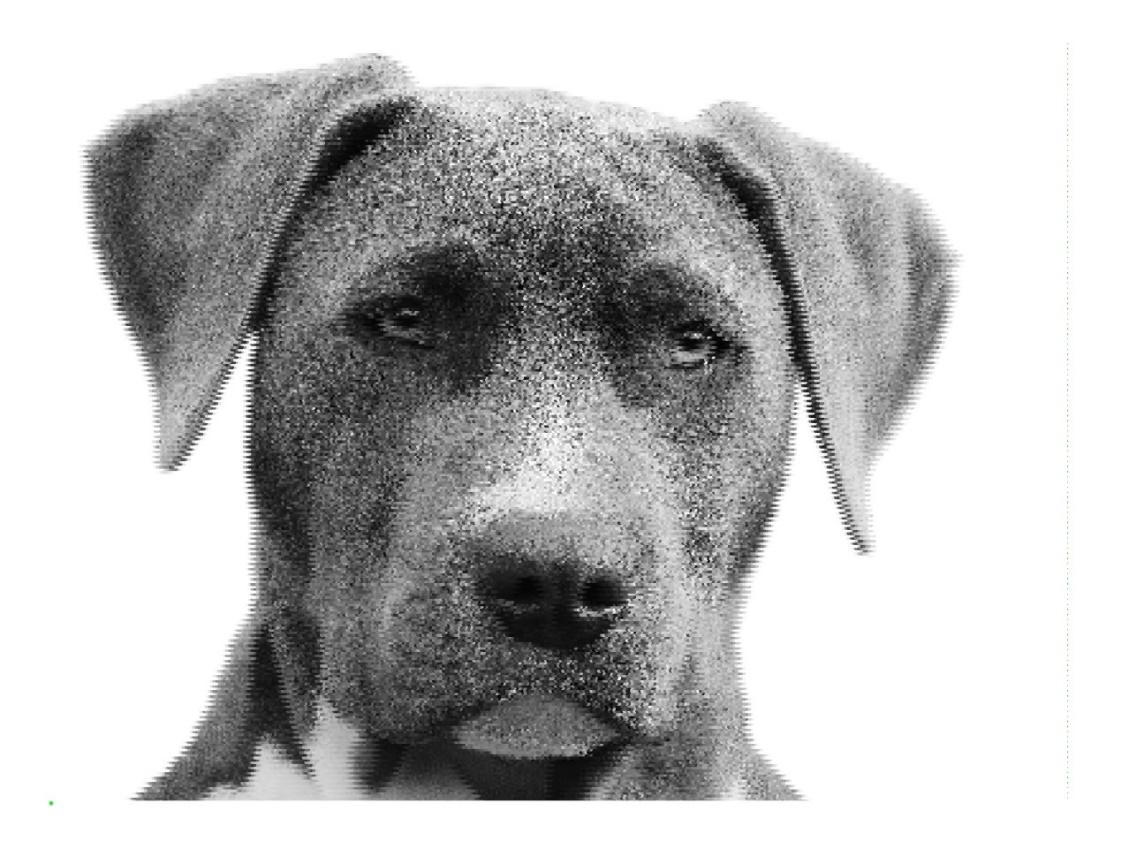
Engraves a grayscale image into stone or another material with a router. The darker a pixel, the deeper the tool goes. Min Z and Max Z set the depth range.
Open the appSettings
Cutting type, coordinates, units and M codes work the same way in every cutting app. G-code settings explained
Basic input data
| Setting | What you enter | Default |
|---|---|---|
| Upload your image file required | JPG, JPEG, BMP, GIF, ICO, WMF, PCX file, up to 50 MB | – |
| X step required | Number | 0 |
| Y step required | Number | 0 |
| Material width (0=image width) | Number | 0 |
| Material height (0=image height) | Number | 0 |
| Material thickness required | Number | 10 |
| Min Z required | Number | 0 |
| Max Z required | Number | 0 |
| Direction required | One of: Zigzag · Left to right · Right to left | Zigzag |
| Outline on required | One of: Yes · No | No |
| Negative required | One of: Yes · No | No |
G-CODE data
| Setting | What you enter | Default |
|---|---|---|
| Coordinates required | One of: Absolute · Incremental · Absolute - Incremental Arc centers | Absolute |
| Measurement unit required | One of: inch · mm · cm | mm |
What you get
- Download Generated G-CODE file (.GCODE)
- Download Generated G-CODE file (.TXT)
- Download Generated G-CODE file (.NC)
- Download Generated DXF
- Download Generated STL
- A preview image of the result
Worked example
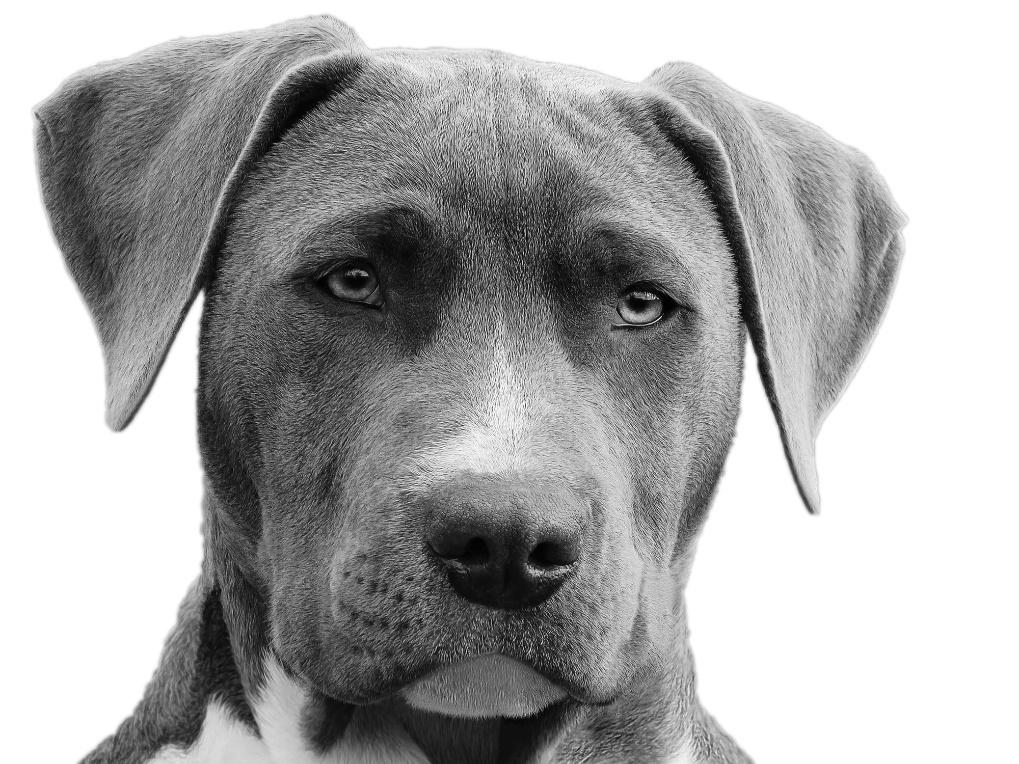
Original picture
Example 1
- X step
0.2- Y step
0.2- Material width (0=image width)
200- Material height (0=image height)
150- Material thickness
30- Outline on
No- Negative
No
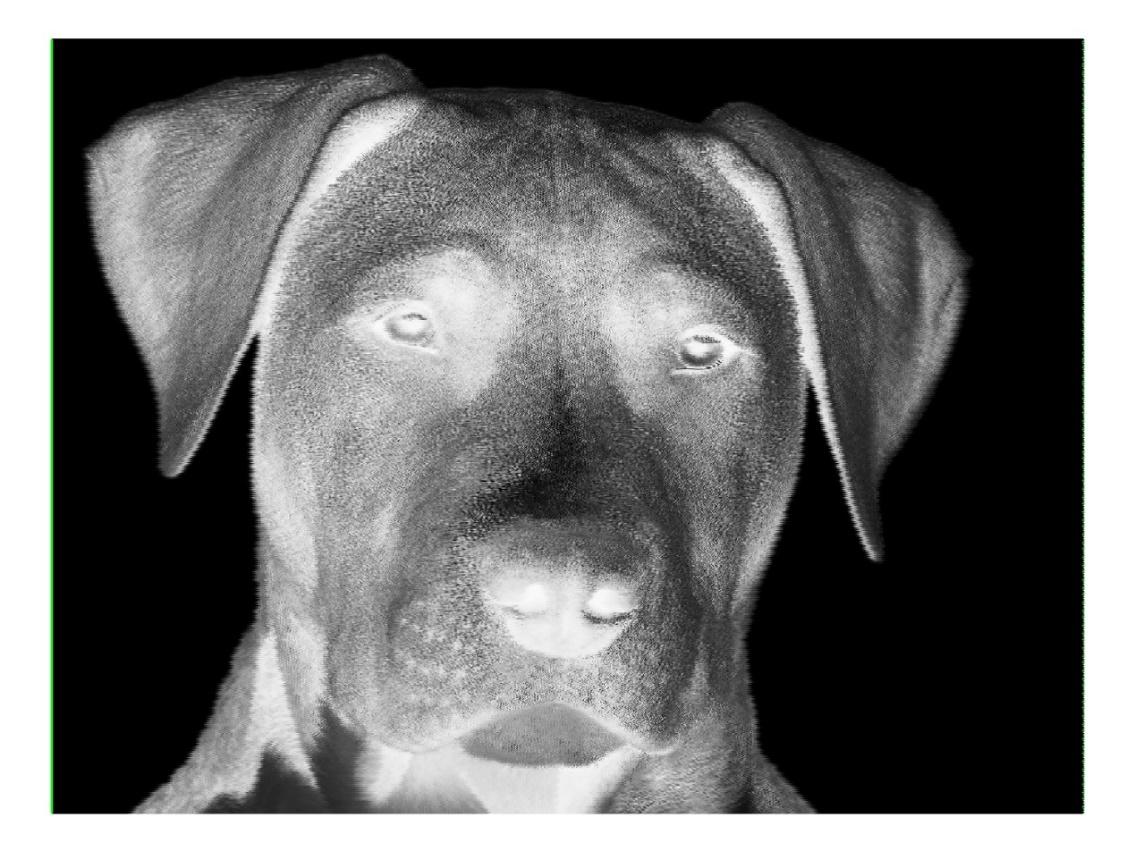
Example 2: negative
The same settings with Negative set to Yes.
- Outline on
No- Negative
Yes
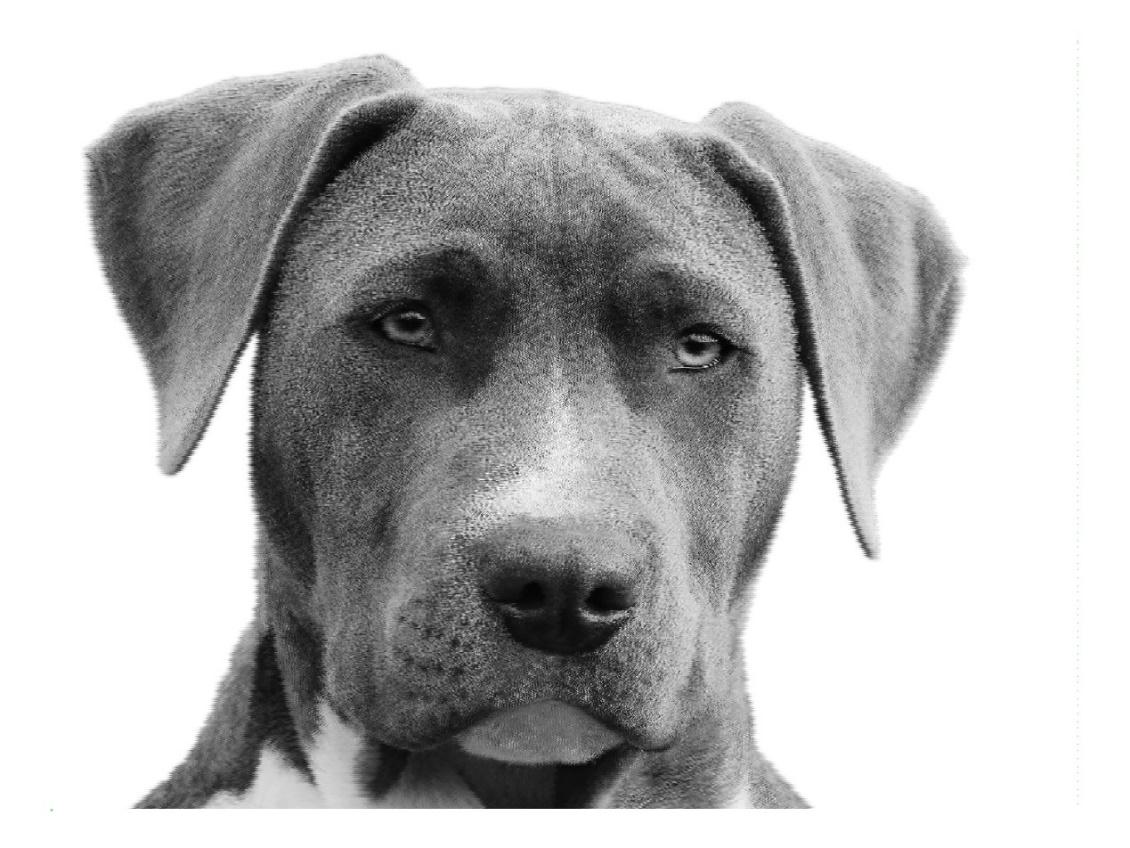
Example 3: coarser steps
A larger step makes a faster program with less detail.
- X step
0.5- Y step
0.5