How to use Text to G-CODE (linear path)
Writes text as G-code along a straight line. Set the width and the height of the text; if you set only one of them, the other is calculated to keep the proportions.
Open the appSettings
Cutting type, coordinates, units and M codes work the same way in every cutting app. G-code settings explained
Basic input data
| Setting | What you enter | Default |
|---|---|---|
| Text required | Text | – |
| Font name required | One of: Arial · Courier New · Times New Roman · Tahoma · GOTHGBT · GOTHGRT · GOTHGRT · GREEKC · GREEKS · ITALICC · ITALICT · RBFONT1 · ROMANC · ROMAND · ROMANS · ROMANT · SCRIPTC · SCRIPTS · Font1 · Font2 · Font3 · Font4 · Font5 · Font6 · Font7 · Font8 | Arial |
| Width | Number | – |
| Height | Number | – |
G-CODE data
| Setting | What you enter | Default |
|---|---|---|
| Cutting type required | One of: GAS · PLASMA · MARK | – |
| Kerf distance | Number | 0 |
| Lead in distance | Number | 0 |
| Lead out distance | Number | 0 |
| Coordinates required | One of: Absolute · Incremental · Absolute - Incremental Arc centers | Absolute |
| Measurement unit required | One of: inch · mm · cm | mm |
| M codes on required | One of: Yes · No | Yes |
What you get
- Download Generated G-CODE file (.GCODE)
- Download Generated G-CODE file (.TXT)
- Download Generated G-CODE file (.NC)
- Download Generated DXF
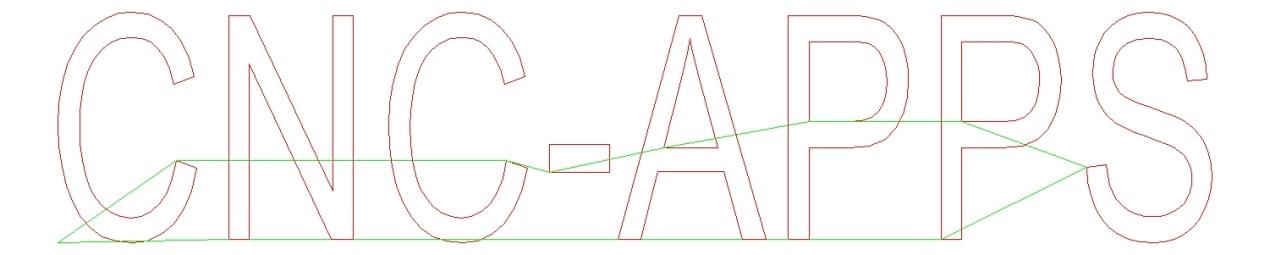
- A preview image of the result
Worked example
Settings
- Text
CNC-APPS- Font name
Arial- Width
100- Height
20